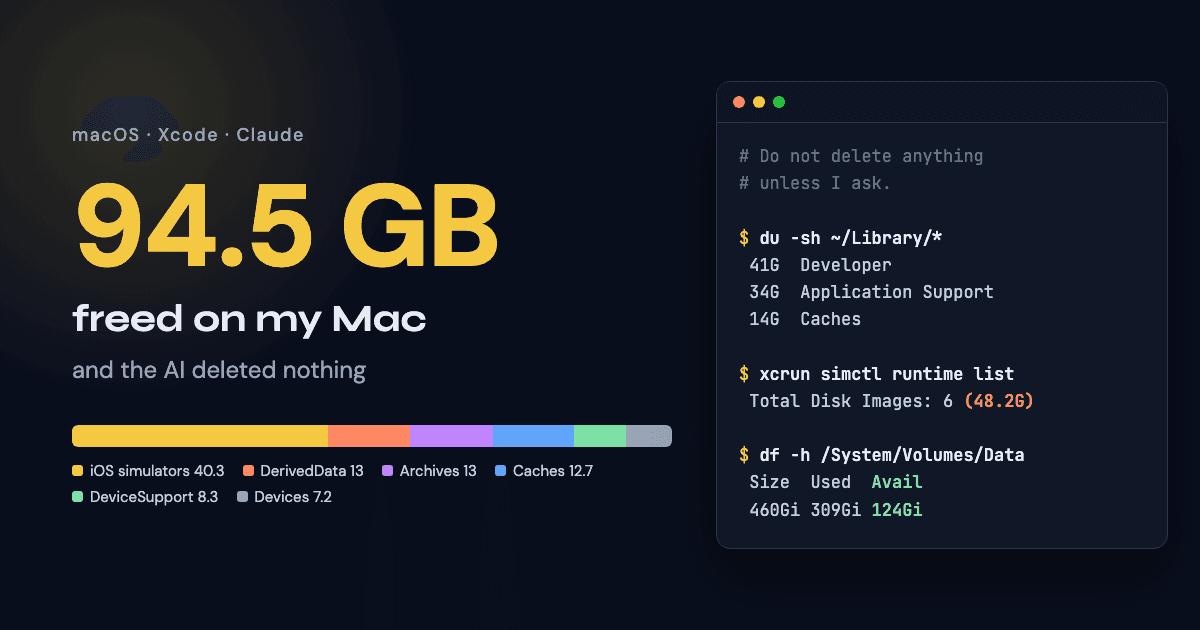
My Mac storage was full, and I had to free up space on it. I did it in one evening with Claude Desktop and got 94.5 GB back. The part I want to share isn't the number. It's how I got there without giving an AI permission to delete anything on my disk.
TL;DR
- My Mac said it was out of application memory. The real problem was a full disk.
- I asked Claude Desktop for a list of what could be deleted, not for a cleanup.
- I denied it access to my folders. It gave me read-only commands, and I ran them myself.
- The biggest wins: old iOS simulator runtimes (40.3 GB), Xcode DerivedData and Archives (13 GB each) and
~/Library/Caches(12.7 GB).
Why my Mac said it was out of application memory
For weeks, macOS kept telling me it was out of application memory and asking me to quit apps. Memory wasn't the real problem, though.
When RAM runs out, macOS moves part of what's in memory to the disk. That's called swap. My disk was almost full, so macOS had nowhere left to put it.
The prompt I used
This is the prompt (translated from Portuguese):
I need to free up space on my MacOS. Identify files or directories that can be deleted without harm (such as system logs, caches and node_modules directories) and make a list of them with the size of each one. Do not delete anything unless I ask.
The last sentence is the important one. A list is cheap. A wrong delete may have no undo.
Why I didn't give the AI access to my folders
Claude Desktop asked for access to my home folder so it could measure everything itself. I said no. With that access it could have deleted everything on its own.
Without it, Claude gave me read-only commands (du, find, ls, xcrun simctl list). I ran them in my terminal and pasted the output back into the chat.
That's slower than letting the agent read the disk. In exchange, every command passed in front of me before it ran.
Step 1: Find what's filling your Mac storage
du stands for "disk usage". It measures how much space each folder takes. Start wide, then go deeper only where the space is:
du -sh ~/* ~/.[!.]* 2>/dev/null | sort -rh | head -30On my Mac, ~/Library alone had 118 GB. So the next command looked inside it:
du -sh ~/Library/* 2>/dev/null | sort -rh | head -15| Folder | Size |
|---|---|
| ~/Library/Developer | 41 GB |
| ~/Library/Application Support | 34 GB |
| ~/Library/Android | 15 GB |
| ~/Library/Caches | 14 GB |
| ~/Library/Containers | 10 GB |
Step 2: Clear the caches in ~/Library/Caches
~/Library/Caches had 14 GB: browser caches, JetBrains indexes, Playwright browsers, Homebrew, Yarn, pnpm and pip caches, and leftovers from app updates. All of it gets recreated when needed. I cleared it and it dropped to 1.3 GB.
Something I liked here: when Claude measured the folder again and saw 1.3 GB, it pointed out that the number had changed and that it hadn't deleted anything. It asked what happened instead of taking the credit.
Don't touch ~/Library/Containers, Preferences or Keychains. They hold real app data and settings, not cache.
Step 3: How to delete Xcode cache (DerivedData, Archives, DeviceSupport)
du -sh ~/Library/Developer/Xcode/* 2>/dev/null | sort -rhFirst, what each folder is:
- DerivedData is where Xcode keeps the output of your builds. Deleting DerivedData is the usual way to clear the Xcode cache.
- iOS DeviceSupport holds the files Xcode prepares for each iPhone or iPad you connect to debug apps.
- Archives are the packaged builds Xcode creates when you publish an app.
| Folder | Size | Risk |
|---|---|---|
| DerivedData | 13 GB | Safe. Build cache, recreated on the next build (that first build is slower). Close Xcode first. |
| Archives | 13 GB | Depends on you. See below. |
| iOS DeviceSupport | 8.3 GB | Safe. Downloaded again when you connect the device. |
About Archives: they hold the dSYM files, the symbols that turn a crash report into readable function names. You need them to read crash reports from an app you've published. If you ship apps, keep at least the archive of the latest released version. Once deleted, they don't come back unless you have a backup.
Step 4: How to delete old iOS simulator runtimes
This was the biggest find: 48 GB that no folder scan showed.
A simulator runtime is the copy of iOS that the Xcode simulator runs, one per iOS version. These runtimes don't live in your home folder, so no du on ~ will ever show them. That's why space like this is easy to miss, and why the Storage settings tend to lump it into the vague "System Data" category. Only this command showed them:
xcrun simctl runtime listI had 6 runtimes (iOS 18.0, 18.1, 18.2, 18.4, 18.5 and 26.4.1), 48.2 GB in total. Xcode downloads any of them again when you need it, so the only risk is waiting for the download.
There are two ways to remove them:
- Xcode: Settings > Components (Platforms in older versions), then the minus button next to each version.
- Terminal:
xcrun simctl runtime delete <ID>, using the IDs from your ownruntime list. It's permanent, with no Trash, so check the IDs twice.
I kept only iOS 26.4.1 (7.9 GB).
Clean up orphan simulators
Removing runtimes leaves orphan simulators behind: devices whose iOS version is gone. I had 12 of them, marked "unavailable", and one command cleans them up:
xcrun simctl delete unavailableThe final count
I asked Claude how much space its prompt had saved. Its answer was "none": it hadn't deleted anything, I had. Then it went through our conversation and compared each folder before and after:
| Item | Before | After | Freed |
|---|---|---|---|
| iOS simulator runtimes | 48.2 GB | 7.9 GB | 40.3 GB |
| Xcode DerivedData | 13 GB | removed | 13 GB |
| Xcode Archives | 13 GB | 0 B | 13 GB |
| ~/Library/Caches | 14 GB | 1.3 GB | 12.7 GB |
| Xcode iOS DeviceSupport | 8.3 GB | removed | 8.3 GB |
| CoreSimulator devices | 7.2 GB | 35 MB | 7.2 GB |
| Total | ~94.5 GB |
These are rounded du values measured at different moments, so treat the total as an estimate. After that the disk had 124 GB free, and I could finally install the macOS 27.2.1 update.
Quick checklist to free up space in macOS
- Run
duon your home folder, then on the biggest folder inside it. - Clear
~/Library/Caches. Leave Containers, Preferences and Keychains alone. - Delete Xcode DerivedData and iOS DeviceSupport. Decide about Archives.
- Run
xcrun simctl runtime listand remove the iOS versions you don't use. - Run
xcrun simctl delete unavailable.
What I'd keep from this
- Ask for a list, not a cleanup. "Do not delete anything unless I ask" turns the agent into an analyst, and an analyst can't break anything.
- Go from wide to narrow. Measure the home folder, then only the biggest branch, one level at a time.
- Look outside your home folder. If you develop for iOS,
xcrun simctl runtime listmay be where most of your space is. - Learn what's safe before you delete. Caches and build output come back. Containers, keychains and Archives may not.
Reviewing a list and deleting each folder by hand took longer than letting the agent do it. Giving an agent permission to delete anywhere on my disk is a risk I didn't want to take just for speed.
Tip: Mole, an open-source Mac cleaner
If you need a bigger cleanup, there's Mole, an open-source cleaner for Mac (and PC) with a command-line tool and a native app. I haven't tested it yet, but I plan to soon. According to its README, it does what I did by hand:
brew install mole
mo analyze          # visual disk explorer, like the du steps above
mo clean --dry-run  # preview what a cleanup would remove, without removing it
The --dry-run part is what caught my attention: it's the same "show me the list first" rule from my prompt. You can also install it with an AI agent. The README suggests telling your agent:
Install Mole for me by reading https://raw.githubusercontent.com/tw93/Mole/main/llms.txt
It also offers a skill for Claude Code, Codex and Cursor that makes the agent run every cleanup with --dry-run before removing anything.
I went straight to Claude because I expected that clearing a few folders would free the space I needed, and that turned out to be true. For a massive cleanup, I'd probably try Mole.
FAQ
Why does my Mac say it's out of application memory?
In my case it wasn't memory. The disk was almost full, and macOS had no room left for swap. Freeing up disk space fixed it.
Is it safe to delete DerivedData?
Yes. It's a build cache, and Xcode recreates it on the next build. That first build is slower. Close Xcode before you delete it.
Can I delete old iOS simulators?
Yes. Xcode downloads any runtime again when you need it, so the only cost is the download time. Remove them in Xcode's Components settings or with xcrun simctl runtime delete, then run xcrun simctl delete unavailable for the orphans.